
Create reusable exercise templates on Fitimyze ?
When you build programs for multiple athletes, certain exercises come up again and again: bench press, squat, rowing... Rather than recreating each exercise every time, Fitimyze lets you create reusable exercise templates. A real time saver in your daily workflow.
To learn how to use your exercises within a program, check out our guide on Creating training sessions in a program.
Access template management
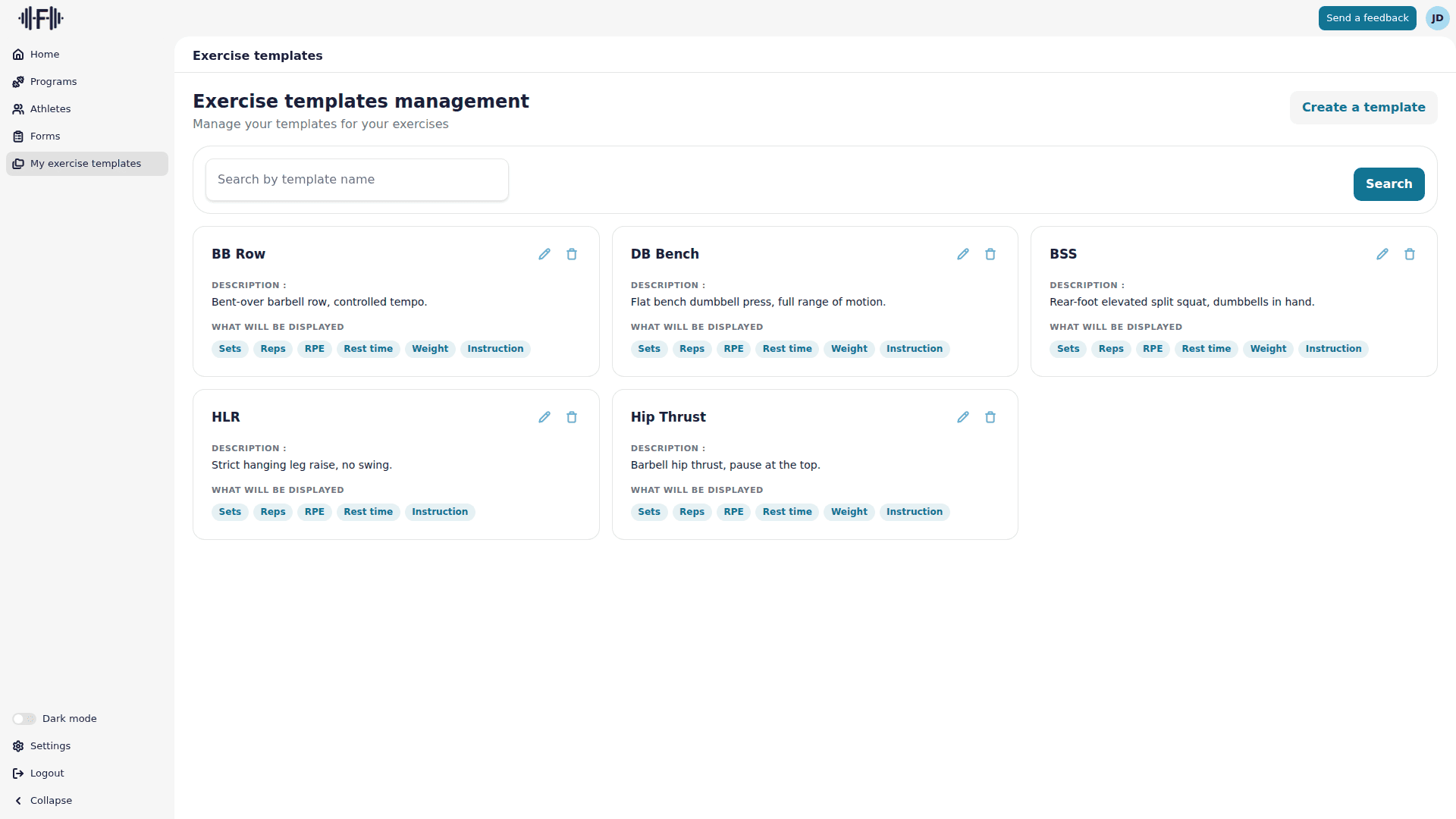
From the left sidebar, click on "My exercise templates". You land on the Exercise templates management page, which lists all your existing templates.
You can search for a template by name using the "Search by template name" bar and clicking "Search".
Create a template
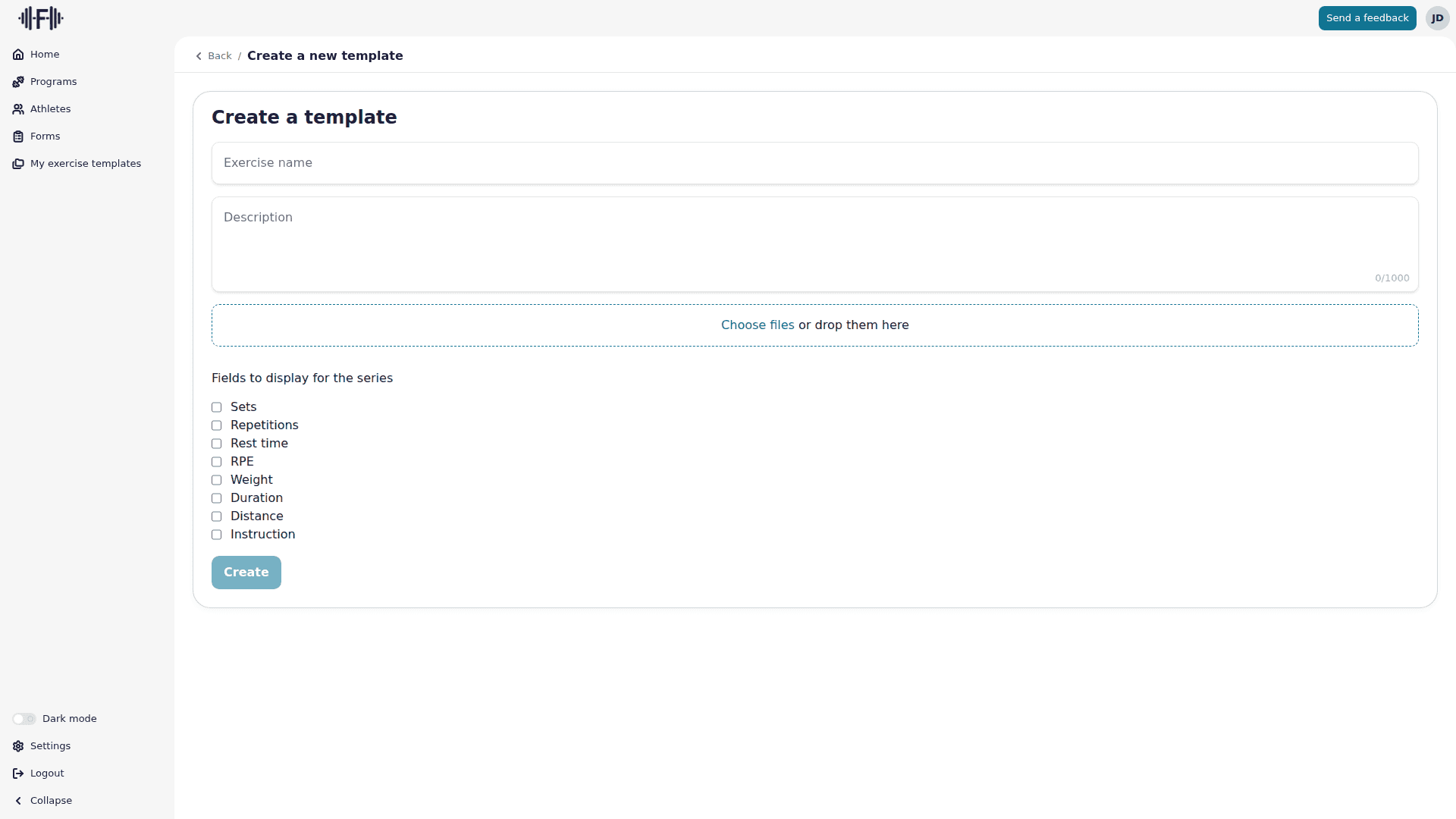
Click the "Create a template" button in the top right corner. A form appears with the following fields:
- Template label: a short name to quickly identify the template (required)
- Exercise name: the full name of the exercise as it will appear in sessions (required)
- Description: execution instructions or additional details about the exercise (up to 1,000 characters)
- File area: you can add images or videos by clicking "Choose files" or dropping them directly
Choose which fields to display for the series
The "Fields to display for the series" section lets you pre-configure which parameters will be visible when you use this template in a session. Only check the fields relevant to this exercise:
| Field | Description |
|---|---|
| Sets | The number of times the athlete should repeat the block |
| Repetitions | The number of reps per set |
| Rest time | Recovery time between series |
| RPE | Rate of Perceived Exertion — the perceived intensity |
| Weight | The load to use |
| Duration | The duration of the effort |
| Distance | The distance to cover |
| Instruction | A specific note or instruction |
For example, for a strength exercise like the bench press, you would check Sets, Repetitions, Rest time and Weight. For a running exercise, you would check Distance and Duration instead.
Click "Create" to confirm.
The template card
Once created, the template appears as a card in the list. It displays:
- The template label as the title
- The exercise name
- The description
- The "What will be displayed" section showing the series fields you selected
Each card offers two actions:
- The pencil icon: open the template edit page
- The trash icon: delete the template (a confirmation will be asked)
Edit a template
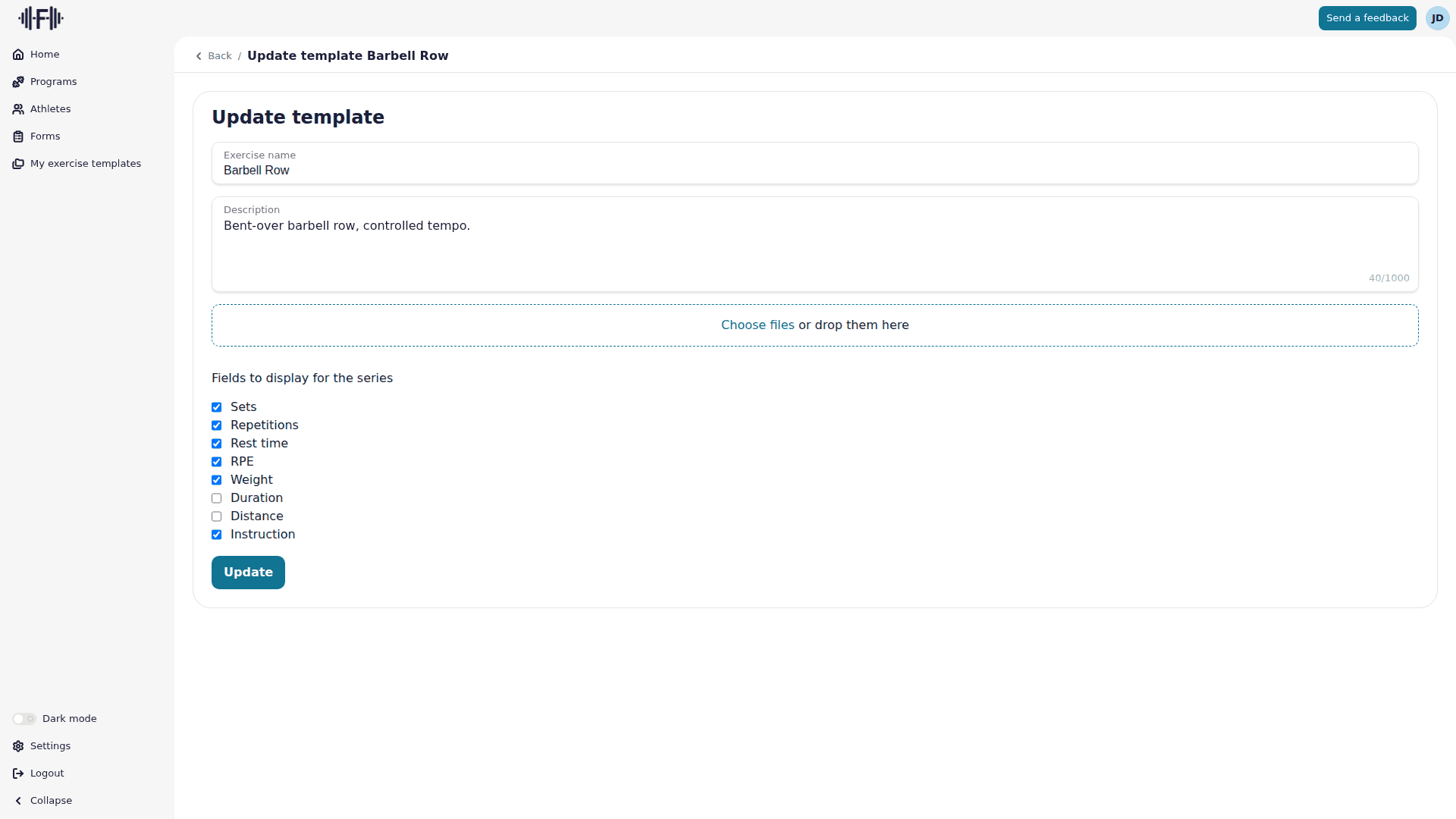
Click the pencil icon on a template to open the Update template page. You'll find the same form as during creation, with all fields pre-filled. Make your changes and click "Update" to save.